
- Популярные видео
- Авто
- Видео-блоги
- ДТП, аварии
- Для маленьких
- Еда, напитки
- Животные
- Закон и право
- Знаменитости
- Игры
- Искусство
- Комедии
- Красота, мода
- Кулинария, рецепты
- Люди
- Мото
- Музыка
- Мультфильмы
- Наука, технологии
- Новости
- Образование
- Политика
- Праздники
- Приколы
- Природа
- Происшествия
- Путешествия
- Развлечения
- Ржач
- Семья
- Сериалы
- Спорт
- Стиль жизни
- ТВ передачи
- Танцы
- Технологии
- Товары
- Ужасы
- Фильмы
- Шоу-бизнес
- Юмор
How to add a wireless camera to wireless NVR? Connecting my wireless NVR to WiFi router., ESSECLOUD
nvr mobile app: EsseCloud. To add a wireless camera to your NVR, power on the camera, hold the reset button for 10 seconds, and follow the on-screen instructions. .
/
### Step 1: Connect the Wireless NVR to the Wireless Router
1. **Power On the NVR**: Ensure the NVR is powered on and within range of your wireless router.
2. **Access NVR Settings**: Use a monitor connected to the NVR to access its settings menu.
3. **Enable Wi-Fi on the NVR**:
- Navigate to the network settings or Wi-Fi settings on the NVR.
- Enable Wi-Fi and scan for available wireless networks.
4. **Connect to the Wireless Router**:
- Select your wireless network from the list.
- Enter the Wi-Fi password to connect the NVR to the router.
5. **Verify Connection**: Ensure the NVR is successfully connected to the wireless network by checking the network status in the settings.
### Step 2: Connect the Wireless IP Camera to the NVR
1. **Power On the IP Camera**: Ensure the wireless IP camera is powered on and within range of the NVR.
2. **Access NVR Camera Settings**:
- On the NVR, navigate to the camera management or device search section.
3. **Add the Wireless IP Camera**:
- Use the NVR's interface to search for the wireless IP camera.
- Once detected, select the camera and follow the prompts to add it to the NVR.
4. **Configure Camera Settings**:
- Ensure the camera is configured to connect to the same wireless network as the NVR.
- Enter any necessary credentials or passwords for the camera.
5. **Verify Connection**: Check the NVR's live view to ensure the wireless IP camera is streaming video.
### Additional Tips:
- **Ensure Compatibility**: Verify that both the NVR and IP camera support wireless connectivity and are compatible with each other.
- **Signal Strength**: Ensure both devices have strong Wi-Fi signals to maintain a stable connection.
- **Firmware Updates**: Keep the firmware of both the NVR and IP camera updated to the latest version for optimal performance.
By following these steps, you should be able to connect your wireless NVR to your wireless router and add a wireless IP camera to the NVR without using any RJ45 cables.
Видео How to add a wireless camera to wireless NVR? Connecting my wireless NVR to WiFi router., ESSECLOUD канала Netcctv_uk
/
### Step 1: Connect the Wireless NVR to the Wireless Router
1. **Power On the NVR**: Ensure the NVR is powered on and within range of your wireless router.
2. **Access NVR Settings**: Use a monitor connected to the NVR to access its settings menu.
3. **Enable Wi-Fi on the NVR**:
- Navigate to the network settings or Wi-Fi settings on the NVR.
- Enable Wi-Fi and scan for available wireless networks.
4. **Connect to the Wireless Router**:
- Select your wireless network from the list.
- Enter the Wi-Fi password to connect the NVR to the router.
5. **Verify Connection**: Ensure the NVR is successfully connected to the wireless network by checking the network status in the settings.
### Step 2: Connect the Wireless IP Camera to the NVR
1. **Power On the IP Camera**: Ensure the wireless IP camera is powered on and within range of the NVR.
2. **Access NVR Camera Settings**:
- On the NVR, navigate to the camera management or device search section.
3. **Add the Wireless IP Camera**:
- Use the NVR's interface to search for the wireless IP camera.
- Once detected, select the camera and follow the prompts to add it to the NVR.
4. **Configure Camera Settings**:
- Ensure the camera is configured to connect to the same wireless network as the NVR.
- Enter any necessary credentials or passwords for the camera.
5. **Verify Connection**: Check the NVR's live view to ensure the wireless IP camera is streaming video.
### Additional Tips:
- **Ensure Compatibility**: Verify that both the NVR and IP camera support wireless connectivity and are compatible with each other.
- **Signal Strength**: Ensure both devices have strong Wi-Fi signals to maintain a stable connection.
- **Firmware Updates**: Keep the firmware of both the NVR and IP camera updated to the latest version for optimal performance.
By following these steps, you should be able to connect your wireless NVR to your wireless router and add a wireless IP camera to the NVR without using any RJ45 cables.
Видео How to add a wireless camera to wireless NVR? Connecting my wireless NVR to WiFi router., ESSECLOUD канала Netcctv_uk
Комментарии отсутствуют
Информация о видео
1 марта 2025 г. 19:56:14
00:01:45
Другие видео канала
 network cable Tool, Network, Organization #Cables #Tool #Network #Organization
 IP camera configuration RU Series: How to connect to NVR.
 Cable tracker tester receiver CCTV tester CAT6 RJ45 test! #Tools #Technology #Networking
 How to Add a Wireless ONVIF PTZ Camera (Tapo) to XMEye DVR/XVR - Easy Setup Guide
 CCTV camera, dual light, #smart light, colorvu technical, installation, mobile app control light 💡
 ZONE WIRING CONNECTION TO THE4 ZONE C-TEC PANEL FIRE ALARM SYSTEM
 Car DVR wiring diagram explained: ACC, B+, GRD. How to test the system without your car!
 How To Add 2nd 8TB HDD TO DAHUA #CCTV NVR To Double Hard Drive Capacity for 6 Months of Recording ✔
 Bracket cctv camera outdoor 🎥 #security #surveillance
 UNV DVR (Beginners guide) UNV-LINK App phone Set-up for remote view
 how to fix speakers in drywall plasterboard ceiling #shorts #home #shop #diy
 Netcctv UK IPC OSD date format overlay settings, ONVIF PoE camera, NVR, Dahua, Hikvision! #CCTV
 #Poe power over #ethernet IPC Tester Full video link
 How to find and test network sockets and patch ports . multifunction CCTV. Network Tester
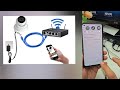 Setting up the network camera's IP address using the mobile app netcctv_uk#IPAddress #NetworkCamera
 Network cable tester. Tone generator 🛠️ #network #cable #tester #tonegenerator
 How to create an ONVIF user on a Hikvision IP camera to connect to any NVR (Dahua , Uniview &... )
 Fiber optic thermal stripper easy to use! ✨ #FiberOptics #Tools #Technology
 Onvif configuration dvr nvr 🖥️ #security #surveillance
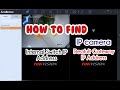 How do I find the Hikvision NVR's internal switch IP address to use for the IP camera gateway?
 Testing network cables How to test #faultfinding ! Cat6 cat5e .... #ethernet
