
- Популярные видео
- Авто
- Видео-блоги
- ДТП, аварии
- Для маленьких
- Еда, напитки
- Животные
- Закон и право
- Знаменитости
- Игры
- Искусство
- Комедии
- Красота, мода
- Кулинария, рецепты
- Люди
- Мото
- Музыка
- Мультфильмы
- Наука, технологии
- Новости
- Образование
- Политика
- Праздники
- Приколы
- Природа
- Происшествия
- Путешествия
- Развлечения
- Ржач
- Семья
- Сериалы
- Спорт
- Стиль жизни
- ТВ передачи
- Танцы
- Технологии
- Товары
- Ужасы
- Фильмы
- Шоу-бизнес
- Юмор
How to Add a Wireless ONVIF PTZ Camera (Tapo) to XMEye DVR/XVR - Easy Setup Guide
In this step-by-step tutorial, we'll show you how to connect a Tapo wireless ONVIF PTZ camera to an XMEye DVR/XVR for seamless surveillance. Perfect for home or business security, this guide ensures a smooth setup process!
**What You'll Learn:**
- Preparing your Tapo PTZ camera for ONVIF setup
- Checking if your XMEye DVR/XVR supports ONVIF/RTSP (must be enabled)
- Ensuring both devices are on the same local network (critical for connection)
- Step-by-step instructions for adding the Tapo camera to XMEye via ONVIF
- Troubleshooting tips for common issues
*Important Notes Before Setup:*
- This demo uses a Tapo PTZ camera and XMEye DVR/XVR (ONVIF-compatible models only)
- XMEye must support ONVIF/RTSP - check settings or firmware updates
- Both devices must be on the same local network (Wi-Fi/LAN)
- Default Tapo credentials may not work - use ONVIF username/password if required
*Tools/Items Needed:*
- Tapo Wireless ONVIF PTZ Camera (e.g., Tapo C310, C500, etc.)
- XMEye DVR/XVR with ONVIF/RTSP support
- Stable local network (LAN/Wi-Fi)
- Camera's IP address, ONVIF username, and password
*Troubleshooting Tips:*
If XMEye not detecting the Tapo camera:
- Enable ONVIF in Tapo's app (Settings / Advanced /ONVIF)
- Ensure XMEye's ONVIF/RTSP is activated (check device settings)
- Verify both devices share the same subnet (e.g., 192.168.1.x)
If login failed:
- Tapo's default password may not work - try creating an ONVIF user in the Tapo app
- Use RTSP/ONVIF port (usually 554 or 2020) if needed
*Found This Helpful?*
Like, Subscribe and Hit the Bell icon for more security camera guides!
*Need Help?*
Drop your questions below - we'll reply ASAP!
*Related Videos:*
How to Enable ONVIF on Tapo Cameras https://youtube.com/shorts/8zvQ1Q9_oSM?si=evwdH42qhGtoxvLN
#Tapo #PTZCamera #XMEye #DVRSetup #ONVIF #RTSP #WirelessCamera #SecurityCameras #Surveillance
*Summary of Key Steps:**
1. Enable ONVIF on Tapo camera via the Tapo app
2. Verify XMEye DVR/XVR supports ONVIF/RTSP
3. Add camera manually using ONVIF mode in XMEye
4. Enter ONVIF credentials (may differ from Tapo's default login)
---
Видео How to Add a Wireless ONVIF PTZ Camera (Tapo) to XMEye DVR/XVR - Easy Setup Guide канала Netcctv_uk
**What You'll Learn:**
- Preparing your Tapo PTZ camera for ONVIF setup
- Checking if your XMEye DVR/XVR supports ONVIF/RTSP (must be enabled)
- Ensuring both devices are on the same local network (critical for connection)
- Step-by-step instructions for adding the Tapo camera to XMEye via ONVIF
- Troubleshooting tips for common issues
*Important Notes Before Setup:*
- This demo uses a Tapo PTZ camera and XMEye DVR/XVR (ONVIF-compatible models only)
- XMEye must support ONVIF/RTSP - check settings or firmware updates
- Both devices must be on the same local network (Wi-Fi/LAN)
- Default Tapo credentials may not work - use ONVIF username/password if required
*Tools/Items Needed:*
- Tapo Wireless ONVIF PTZ Camera (e.g., Tapo C310, C500, etc.)
- XMEye DVR/XVR with ONVIF/RTSP support
- Stable local network (LAN/Wi-Fi)
- Camera's IP address, ONVIF username, and password
*Troubleshooting Tips:*
If XMEye not detecting the Tapo camera:
- Enable ONVIF in Tapo's app (Settings / Advanced /ONVIF)
- Ensure XMEye's ONVIF/RTSP is activated (check device settings)
- Verify both devices share the same subnet (e.g., 192.168.1.x)
If login failed:
- Tapo's default password may not work - try creating an ONVIF user in the Tapo app
- Use RTSP/ONVIF port (usually 554 or 2020) if needed
*Found This Helpful?*
Like, Subscribe and Hit the Bell icon for more security camera guides!
*Need Help?*
Drop your questions below - we'll reply ASAP!
*Related Videos:*
How to Enable ONVIF on Tapo Cameras https://youtube.com/shorts/8zvQ1Q9_oSM?si=evwdH42qhGtoxvLN
#Tapo #PTZCamera #XMEye #DVRSetup #ONVIF #RTSP #WirelessCamera #SecurityCameras #Surveillance
*Summary of Key Steps:**
1. Enable ONVIF on Tapo camera via the Tapo app
2. Verify XMEye DVR/XVR supports ONVIF/RTSP
3. Add camera manually using ONVIF mode in XMEye
4. Enter ONVIF credentials (may differ from Tapo's default login)
---
Видео How to Add a Wireless ONVIF PTZ Camera (Tapo) to XMEye DVR/XVR - Easy Setup Guide канала Netcctv_uk
Комментарии отсутствуют
Информация о видео
28 мая 2025 г. 16:20:42
00:00:43
Другие видео канала
 network cable Tool, Network, Organization #Cables #Tool #Network #Organization
 How to connect Wireless IP camera to The NVR ONVIF IPC to Hikvision NVR? #IPCamera #NVR #Wireles
 Safety Switch RESET if Heater Element not working !#electric #test #diy #home
 Cable tracker tester receiver CCTV tester CAT6 RJ45 test! #Tools #Technology #Networking
 CCTV camera, dual light, #smart light, colorvu technical, installation, mobile app control light 💡
 How to Connect & Access an IP Camera from a PC (Step-by-Step Guide) & Change Settings
 Car DVR wiring diagram explained: ACC, B+, GRD. How to test the system without your car!
 How to Scan IP Addresses on a Local Network #WIFI #CCTV #extender #technology
 How To Add 2nd 8TB HDD TO DAHUA #CCTV NVR To Double Hard Drive Capacity for 6 Months of Recording ✔
 Bracket cctv camera outdoor 🎥 #security #surveillance
 UNV DVR (Beginners guide) UNV-LINK App phone Set-up for remote view
 how to fix speakers in drywall plasterboard ceiling #shorts #home #shop #diy
 Netcctv UK IPC OSD date format overlay settings, ONVIF PoE camera, NVR, Dahua, Hikvision! #CCTV
 #Poe power over #ethernet IPC Tester Full video link
 How to find and test network sockets and patch ports . multifunction CCTV. Network Tester
 netcctv.uk netcctv_uk 2m Network Switch type speed test and Ethernet Gigabit #Networking
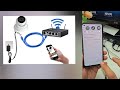 Setting up the network camera's IP address using the mobile app netcctv_uk#IPAddress #NetworkCamera
 Network cable tester. Tone generator 🛠️ #network #cable #tester #tonegenerator
 How to create an ONVIF user on a Hikvision IP camera to connect to any NVR (Dahua , Uniview &... )
 Onvif configuration dvr nvr 🖥️ #security #surveillance
