
- Популярные видео
- Авто
- Видео-блоги
- ДТП, аварии
- Для маленьких
- Еда, напитки
- Животные
- Закон и право
- Знаменитости
- Игры
- Искусство
- Комедии
- Красота, мода
- Кулинария, рецепты
- Люди
- Мото
- Музыка
- Мультфильмы
- Наука, технологии
- Новости
- Образование
- Политика
- Праздники
- Приколы
- Природа
- Происшествия
- Путешествия
- Развлечения
- Ржач
- Семья
- Сериалы
- Спорт
- Стиль жизни
- ТВ передачи
- Танцы
- Технологии
- Товары
- Ужасы
- Фильмы
- Шоу-бизнес
- Юмор
How to transfer Photos and Videos from your Phone to Windows PC (Without Cable) @WindowsAdminWorld
How to transfer Photos and Videos from your Android phone to a Windows PC using **FTP Manager Lite & Mobile to PC File Transfer**, follow these steps:
### Requirements:
1. **FTP Manager Lite for Windows PC**: [Download Link](https://www.deskshare.com/ftp-manager-free.aspx?srsltid=AfmBOoqC1oms0ZP1c_1jYn9pHej9MXWxkvjdoZAe9k0isngApLw1CDri)
2. **Mobile to PC File Transfer for Android**: [Google Play Link](https://play.google.com/store/apps/details?id=deskshare.com.pctomobiletransfer)
### Step-by-Step Guide:
#### **1. Install FTP Manager Lite on Windows PC**
- Go to the [FTP Manager Lite Download Page](https://www.deskshare.com/ftp-manager-free.aspx) on your Windows PC.
- Download and install the application by following the on-screen instructions.
#### **2. Install Mobile to PC File Transfer on Android Device**
- Open the **Google Play Store** on your Android device.
- Search for "Mobile to PC File Transfer" and install the app. Alternatively, use the provided link: [Mobile to PC File Transfer - Android](https://play.google.com/store/apps/details?id=deskshare.com.pctomobiletransfer).
#### **3. Open FTP Manager Lite on Windows**
- After installing the software on your Windows PC, **open the FTP Manager Lite** application.
- When the app opens, you’ll see **four radio button options**. Select the last option:
- **“Transfer files between a PC folder and a Mobile device”**.
- Click **Next** to proceed.
#### **4. Configure FTP Connection on Windows PC**
- A new screen will appear showing both **PC Folder** and **Mobile Device**.
- Select **Mobile Device** to set up the connection. You'll need the **ID and Password** for this.
- On this screen, you’ll see a **QR code** displayed on your Windows PC. Keep this screen open.
#### **5. Set Up Mobile to PC File Transfer on Android Device**
- Open the **Mobile to PC File Transfer app** on your Android phone.
- When prompted, grant the app permissions to access your files.
- Next, select the option **"I already have one of these FTP Clients"** and proceed.
- Choose **"Same Wi-Fi Network as PC"**. This option will allow your Android device to connect to the same network as your PC.
- Allow access to manage files.
#### **6. Scan QR Code from Windows PC on Android**
- Once the Mobile to PC File Transfer app on Android is ready, **scan the QR code** displayed on the Windows PC screen.
- After scanning, the app will automatically retrieve the **ID and Password** required for the FTP connection.
#### **7. Connect Windows PC to Android**
- Now, go back to your Windows PC.
- In FTP Manager Lite on your PC, enter the **ID and Password** from the Android app into the respective fields.
- Click on **Test Connection**. If the connection is successful, it will show a "Connected" message.
- Click **Next** and then **Create** to create a profile. Name the profile something like **"PC-Mobile"** for easy identification.
#### **8. Transfer Files from Android to Windows**
- After the profile is created, you’ll see both the **PC** and **Mobile** folders in the FTP Manager Lite interface.
- On your Android phone, select the files (photos, videos, etc.) you want to transfer.
- Drag and drop the selected files from your mobile device to your PC folder or use the available options in the app to initiate the transfer.
#### **9. Complete the Transfer**
- Once the files are transferred successfully, you can find them in the designated folder on your Windows PC.
### Tips:
- Make sure both your PC and Android device are connected to the same Wi-Fi network for a smooth transfer.
- If you face any connection issues, check the firewall or antivirus settings on your PC that may block the FTP connection.
- Always ensure that you have the required permissions enabled on your Android device to access the files.
By following these steps, you can easily transfer your photos and videos from Android to Windows using FTP Manager Lite & Mobile to PC File Transfer. Enjoy your seamless file transfers!
@WindowsAdminWorld
Видео How to transfer Photos and Videos from your Phone to Windows PC (Without Cable) @WindowsAdminWorld канала WindowsAdminWorld
### Requirements:
1. **FTP Manager Lite for Windows PC**: [Download Link](https://www.deskshare.com/ftp-manager-free.aspx?srsltid=AfmBOoqC1oms0ZP1c_1jYn9pHej9MXWxkvjdoZAe9k0isngApLw1CDri)
2. **Mobile to PC File Transfer for Android**: [Google Play Link](https://play.google.com/store/apps/details?id=deskshare.com.pctomobiletransfer)
### Step-by-Step Guide:
#### **1. Install FTP Manager Lite on Windows PC**
- Go to the [FTP Manager Lite Download Page](https://www.deskshare.com/ftp-manager-free.aspx) on your Windows PC.
- Download and install the application by following the on-screen instructions.
#### **2. Install Mobile to PC File Transfer on Android Device**
- Open the **Google Play Store** on your Android device.
- Search for "Mobile to PC File Transfer" and install the app. Alternatively, use the provided link: [Mobile to PC File Transfer - Android](https://play.google.com/store/apps/details?id=deskshare.com.pctomobiletransfer).
#### **3. Open FTP Manager Lite on Windows**
- After installing the software on your Windows PC, **open the FTP Manager Lite** application.
- When the app opens, you’ll see **four radio button options**. Select the last option:
- **“Transfer files between a PC folder and a Mobile device”**.
- Click **Next** to proceed.
#### **4. Configure FTP Connection on Windows PC**
- A new screen will appear showing both **PC Folder** and **Mobile Device**.
- Select **Mobile Device** to set up the connection. You'll need the **ID and Password** for this.
- On this screen, you’ll see a **QR code** displayed on your Windows PC. Keep this screen open.
#### **5. Set Up Mobile to PC File Transfer on Android Device**
- Open the **Mobile to PC File Transfer app** on your Android phone.
- When prompted, grant the app permissions to access your files.
- Next, select the option **"I already have one of these FTP Clients"** and proceed.
- Choose **"Same Wi-Fi Network as PC"**. This option will allow your Android device to connect to the same network as your PC.
- Allow access to manage files.
#### **6. Scan QR Code from Windows PC on Android**
- Once the Mobile to PC File Transfer app on Android is ready, **scan the QR code** displayed on the Windows PC screen.
- After scanning, the app will automatically retrieve the **ID and Password** required for the FTP connection.
#### **7. Connect Windows PC to Android**
- Now, go back to your Windows PC.
- In FTP Manager Lite on your PC, enter the **ID and Password** from the Android app into the respective fields.
- Click on **Test Connection**. If the connection is successful, it will show a "Connected" message.
- Click **Next** and then **Create** to create a profile. Name the profile something like **"PC-Mobile"** for easy identification.
#### **8. Transfer Files from Android to Windows**
- After the profile is created, you’ll see both the **PC** and **Mobile** folders in the FTP Manager Lite interface.
- On your Android phone, select the files (photos, videos, etc.) you want to transfer.
- Drag and drop the selected files from your mobile device to your PC folder or use the available options in the app to initiate the transfer.
#### **9. Complete the Transfer**
- Once the files are transferred successfully, you can find them in the designated folder on your Windows PC.
### Tips:
- Make sure both your PC and Android device are connected to the same Wi-Fi network for a smooth transfer.
- If you face any connection issues, check the firewall or antivirus settings on your PC that may block the FTP connection.
- Always ensure that you have the required permissions enabled on your Android device to access the files.
By following these steps, you can easily transfer your photos and videos from Android to Windows using FTP Manager Lite & Mobile to PC File Transfer. Enjoy your seamless file transfers!
@WindowsAdminWorld
Видео How to transfer Photos and Videos from your Phone to Windows PC (Without Cable) @WindowsAdminWorld канала WindowsAdminWorld
Комментарии отсутствуют
Информация о видео
17 ноября 2024 г. 17:54:15
00:07:33
Другие видео канала
 How to Configure VMware WorkStation Setting Part 1
 What is IP and Subnetting @WindowsAdminWorld
 What is ADDS and How to Install & Configure @WindowsAdminWorld
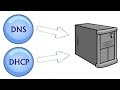 How to Configure DNS & DHCP @WindowsAdminWorld
 Email Tracker with Cloud HQ
 How to Configure VMware WorkStation Setting Part 2
 Define ADDS(ACTIVE DIRECTORY DOMAIN SERVICE) include PDC, CDC, Tree Domain & ADC @WindowsAdminWorld
 How to Install and Configure Active Directory on Windows Server 2012 @WindowsAdminWorld
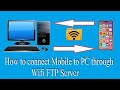 How to Transfer Data Mobile to Laptop/Desktop Over WIFI
 How to Install Ubuntu Server & Desktop
 How to Install WSL Feature on Windows @WindowsAdminWorld
 How to Expand System Drive in VMware Workstaton
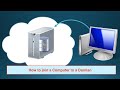 How to Join Domain on Windows Server & Desktop PC @WindowsAdminWorld
 Windows Server Not Showing up in Network in File Explorer @WindowsAdminWorld
 How to Fix Windows License Error on VMware Workstation @WindowsAdminWorld
 VMWARE WORKSTATION LOCK ERROR
 How to Resolve Pen Drive Not Detecting/Not Showing Issue in Google TV @WindowsAdminWorld
 How to delete multiple Gmail Account from Android Phone
 No Audio Due to Unsupported Format| Issue Resolved @WindowsAdminWorld
 How to Configure Disable IP auto-configuration in a Windows server @WindowsAdminWorld
