
- Популярные видео
- Авто
- Видео-блоги
- ДТП, аварии
- Для маленьких
- Еда, напитки
- Животные
- Закон и право
- Знаменитости
- Игры
- Искусство
- Комедии
- Красота, мода
- Кулинария, рецепты
- Люди
- Мото
- Музыка
- Мультфильмы
- Наука, технологии
- Новости
- Образование
- Политика
- Праздники
- Приколы
- Природа
- Происшествия
- Путешествия
- Развлечения
- Ржач
- Семья
- Сериалы
- Спорт
- Стиль жизни
- ТВ передачи
- Танцы
- Технологии
- Товары
- Ужасы
- Фильмы
- Шоу-бизнес
- Юмор
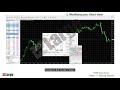
2 MT4 Templates :: Part of our MT4 Trader Education Video Series
2 MT4 Templates
In the last video we showed you how to set up a chart with any colour scheme of your choosing.
If you don’t want to have to do this every time, you can easily set up a default template so that this configuration appears whenever you open a new chart.
In this lesson we will cover:
1. Creating a default template
2. Two ways of opening a default chart
3. Creating a custom template
4. Removing templates
and
5. Replacing a chart by dragging in a new asset
You may recall, the chart we created had red and green candlesticks and was set to the 1 hour time frame with basically nothing else added.
The process for creating a default template is simple.
Simply right click on the chart, select “Template”, then “Save Template”.
The Windows “Save As” box appears displaying your existing templates.
To save this configuration as your “Default” simply select “default”.
However, the first time you do this, the “default” template may be hidden.
If you can’t see this simply type in the “File Name” box “default” all in lower case and click “Save”.
OK, let’s try it. Close the chart leaving your screen blank.
Open a new chart by right clicking on an asset in your Market Watch, let’s say EURUSD, and the new chart appears with the same configuration.
Another way to select a default chart is to click on the “Create a New Chart” button and scroll down until you find your desired asset.
Let’s try AUDUSD and, again, the chart appears as your default configuration.
OK, that is our “Default” template but what if we want to create different configurations?
For example, let’s change the timeframe to 15 minute candles.
Let’s add an indicator: Bollinger Bands for example.
Let’s add an oscillator: Stochastics for example.
We note that some indicators are opened in a separate window.
Don’t worry about what these are right now.
We will learn about indicators in later lessons.
So, the changes I’ve just made have no bearing on the default template.
They only affect this chart.
To prove it, let’s open another chart.
Scroll over an asset in Market Watch and select “Chart Window”.
Again we have the default configuration.
We can see all the open charts in our chart tabs so let’s return to our AUDUSD chart.
To save our new chart configurations we can either right click on the chart and select “Template” and “Save Template”.
…or we can select “Templates” on our toolbar and choose “Save Template”
…or we can click on the “Charts” menu; select “Template” and choose “Save Template”.
You may call this anything you wish; “Intraday” for example.
As you experiment with various configurations, you may create as many templates as you wish.
Your platform comes equipped with existing templates.
You may find these useful or you may wish to delete these or to delete any template for that matter.
Select “Template”, “Remove Template” and delete whichever ones you no longer require.
Let’s open a new chart; Gold for example or XAUUSD.
Now, let’s apply our “Intraday” template.
We now have the desired configuration.
If you want to replace this chart, and maintain the current configuration, simply click, drag and drop a new asset from the market watch panel.
You will note that the Gold chart is no longer here but it has been replaced by our new USDCAD chart.
In the next lesson we will look at different time frames and saving profiles.
Видео 2 MT4 Templates :: Part of our MT4 Trader Education Video Series канала FX Large
In the last video we showed you how to set up a chart with any colour scheme of your choosing.
If you don’t want to have to do this every time, you can easily set up a default template so that this configuration appears whenever you open a new chart.
In this lesson we will cover:
1. Creating a default template
2. Two ways of opening a default chart
3. Creating a custom template
4. Removing templates
and
5. Replacing a chart by dragging in a new asset
You may recall, the chart we created had red and green candlesticks and was set to the 1 hour time frame with basically nothing else added.
The process for creating a default template is simple.
Simply right click on the chart, select “Template”, then “Save Template”.
The Windows “Save As” box appears displaying your existing templates.
To save this configuration as your “Default” simply select “default”.
However, the first time you do this, the “default” template may be hidden.
If you can’t see this simply type in the “File Name” box “default” all in lower case and click “Save”.
OK, let’s try it. Close the chart leaving your screen blank.
Open a new chart by right clicking on an asset in your Market Watch, let’s say EURUSD, and the new chart appears with the same configuration.
Another way to select a default chart is to click on the “Create a New Chart” button and scroll down until you find your desired asset.
Let’s try AUDUSD and, again, the chart appears as your default configuration.
OK, that is our “Default” template but what if we want to create different configurations?
For example, let’s change the timeframe to 15 minute candles.
Let’s add an indicator: Bollinger Bands for example.
Let’s add an oscillator: Stochastics for example.
We note that some indicators are opened in a separate window.
Don’t worry about what these are right now.
We will learn about indicators in later lessons.
So, the changes I’ve just made have no bearing on the default template.
They only affect this chart.
To prove it, let’s open another chart.
Scroll over an asset in Market Watch and select “Chart Window”.
Again we have the default configuration.
We can see all the open charts in our chart tabs so let’s return to our AUDUSD chart.
To save our new chart configurations we can either right click on the chart and select “Template” and “Save Template”.
…or we can select “Templates” on our toolbar and choose “Save Template”
…or we can click on the “Charts” menu; select “Template” and choose “Save Template”.
You may call this anything you wish; “Intraday” for example.
As you experiment with various configurations, you may create as many templates as you wish.
Your platform comes equipped with existing templates.
You may find these useful or you may wish to delete these or to delete any template for that matter.
Select “Template”, “Remove Template” and delete whichever ones you no longer require.
Let’s open a new chart; Gold for example or XAUUSD.
Now, let’s apply our “Intraday” template.
We now have the desired configuration.
If you want to replace this chart, and maintain the current configuration, simply click, drag and drop a new asset from the market watch panel.
You will note that the Gold chart is no longer here but it has been replaced by our new USDCAD chart.
In the next lesson we will look at different time frames and saving profiles.
Видео 2 MT4 Templates :: Part of our MT4 Trader Education Video Series канала FX Large
cfd compelling content content currency expert advisor forex forex trading fx fx broker how to how to set up mt4 how to use mt4 learn learn mt4 market marketing video metatrader metatrader 4 mt4 mt4 content mt4 trader education videos mt4 tutorials mt4 video stock trader education trading trading education trading video content video video content for website video production broker video production forex video production trading white label videos
Комментарии отсутствуют
Информация о видео
12 декабря 2017 г. 22:41:30
00:04:46
Другие видео канала
 Forex Source for Brokers Introduction
 Las Diferencias entre NinjaTrader 8 y MetaTrader 4 :: Gráficos
 cTrader Web from Spotware :: Calendar and Analysis Upgrade 2020
 MT5 Basic Graphics Tutorial Step by Step #mt5 #forexeducation #fibonacci
 Gold Trading Webinar for Valutrades
 White-Label Video for FX Brokers: 1 Match Trader FX Large Intro #brokercontent #fxbrokervideos
 Acuity Trading's MT4 Research Terminal
 Quox Platform Tour
 8 FX Large DXtrade Mobile Overview May 2026
 4 DXtrade Basic Graphics for FX/CFD Brokers | White Label Trading Videos #DXtrade #forex
 1 DXtrade Platform Overview for FX/CFD Brokers | White Label Videos #DXtradeVideos #forexcontent
 3 Sample Only MT5 Templates ChTrad
 header video
 Sample Video 9 :: MT5 Charts within Charts
 Gold-i's Matrix Video
 19 June 2017 :: Brexit Begins! What to watch out for!
 FX Large :: Overview Video :: Compelling Content for Capital Markets
 2 DXtrade Watchlists for FX/CFD Brokers | White Label Videos #forexcontent #broker
 Cantonese Video 3 ADSS OREX MOBILE PLATFORM Symbols and Charts
 1 MT4 Getting Started :: Part of our MT4 Trader Education Video Series
