
- Популярные видео
- Авто
- Видео-блоги
- ДТП, аварии
- Для маленьких
- Еда, напитки
- Животные
- Закон и право
- Знаменитости
- Игры
- Искусство
- Комедии
- Красота, мода
- Кулинария, рецепты
- Люди
- Мото
- Музыка
- Мультфильмы
- Наука, технологии
- Новости
- Образование
- Политика
- Праздники
- Приколы
- Природа
- Происшествия
- Путешествия
- Развлечения
- Ржач
- Семья
- Сериалы
- Спорт
- Стиль жизни
- ТВ передачи
- Танцы
- Технологии
- Товары
- Ужасы
- Фильмы
- Шоу-бизнес
- Юмор
Excel 2021 In Practice - Ch 2 Guided Project 2-3 | Excel Chapter 2 Guided Project 2-3
Excel 2021 In Practice - Ch 2 Guided Project 2-3 | Excel Chapter 2 Guided Project 2-3
#excel2021,#excel_2021_in_practice_ch_2_guided_project_2_3,#excel2021inpracticech2guidedproject23,#guided_project#simnet
Contact us:
Whatsapp: +923056080612
Gmail: propearson89@gmail.com
Whatsapp chat link:
https://tinyurl.com/ms5486jv
INSTAGRAM LINK:
https://www.instagram.com/zaadaawaan53?igsh=MWJ6aHhrY3Qxc3N1cA==
IMO ID LINK FOR CHAT: https://s.imoim.net/95FIBz
@BusinessComputerApplication
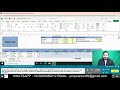
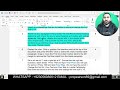
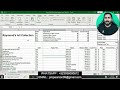
Guided Project 2-3 Sierra Pacific Community College District (SPCCD) consists of four individual community colleges. The workbook for this project includes an amortization schedule for student loans and a fee and credit hour summary for several departments. [Student Learning Outcomes 2.1, 2.2, 2.3, 2.4, 2.5, 2.6, 2.7] File Needed: SierraPacific-02.xlsx (Available from the Start File link.) Completed Project File Name:[your name]-SierraPacific-02.xlsx Skills Covered in This Project Name cell ranges. Create and copy formulas. Set mathematical order of operations. Use absolute references in formulas. Insert the current date as a function. Use the PMT function. Audit formulas. Use SUMIF and SUMPRODUCT. Steps to complete This Project Mark the steps as checked when you complete them. 1. Open the SierraPacific-02.xlsx start file. If the workbook opens in Protected View, click the Enable Editing button so you can modify it. The file will be renamed automatically to include your name. Change the project file name if directed to do so by your instructor, and save it. NOTE: If group titles are not visible on your Ribbon in Excel for Mac, click the Excel menu and select Preferences to open the Excel Preferences dialog box. Click the View button and check the Group Titles check box under In Ribbon, Show. Close the Excel Preferences dialog box. 2. Set range names for the workbook. a. Select the Student Loan sheet, and select cells B5:C8. b. Click the Create from Selection button [Formulas tab, Defined Names group]. c. Verify that the Left column box in the Create Names from Selection dialog box is selected. d. Deselect the Top row box if it is checked and click OK. e. Select cells E5:F7. Repeat steps a−d to create range names. f. Click the Name Manager button [Formulas tab, Defined Names group] to view the names in the Name Manager dialog box (Figure 2-90-Mac). Notice that the cell references are absolute. g. Click Close. 3. Enter a PMT function. a. Select C8. b. Click the Financial button [Formulas tab, Function Library group] and select PMT. c. Click the Rate box and click cell C7. The range name Rate is substituted and is an absolute reference. d. Type /12 immediately after Rate to divide by 12 for monthly payments. e. Click the Nper box and click cell C6. The substituted range name is Loan_Term. f. Type *12 after Loan_Term to multiply by 12. g. Click the Pv box and type a minus sign (-) to set the argument as a negative amount. h. Click cell C5 (Loan_Amount) for the pv argument. A negative loan amount reflects the lender’s perspective, since the money is paid out now (Figure 2-91-Mac). i. Leave the Fv and Type boxes empty. j. Click Done. The payment for a loan at this rate is $186.43, shown as a positive value. k. Verify or format cell C8 as Accounting Number Format to match cell C5 4. Create a total interest formula. a. Click cell F5 (Total_Interest). This value is calculated by multiplying the monthly payment by the total number of payments to determine total outlay. From this amount, you subtract the loan amount. b. Type = and click cell C8 (the Payment). c. Type * to multiply and click cell C6 (Loan_Term). d. Type *12 to multiply by 12 for monthly payments. Values typed in a formula are constants and are absolute references. e. Type – immediately after *12 to subtract.
@BusinessComputerApplication
#excel 2021 in practice - ch 2 guided project 2-3
#guidedproject
#ch_2_guided_project_2_3
,#ch2guidedproject23
#ch 2 guided project 2-3
#excel 2021 in practice
#sierrapacific-02.xlsx
#excel 2021,#excel chapter 2 guided project 2-3
#excel 2021 in practice ch 2 guided project 2-3
#guidedmeditation project 2-3
#project 2-3
#guidedmeditation
,#excel 2021 in practice - ch 3 guided project 3-3
#excel2021
#Excel_2021_In_Practice_Ch_2_Guided_Project_2_3
#Excel2021InPracticeCh2GuidedProject23
#Guided_Project #GuidedProject
#Ch_2_Guided_Project_2_3
#Ch2GuidedProject23
#Excel_2021_In_Practice
#Excel2021InPractice
#Ch_2 #Ch2 #Excel_2021
#Excel2021
#Guided
#InPractice
#In_Practice
#SierraPacific-02.xlsx
#Excel2021InPracticeCh1GuidedProject13
#Excel2021InPracticeCh2GuidedProject23
#Excel2021InPracticeCh3GuidedProject33
#Excel2021InPracticeCh4GuidedProject43
#Excel2021InPracticeCh5GuidedProject53
#Excel2021InPracticeCh6GuidedProject63
#Excel2021InPracticeCh7GuidedProject73
#Excel2021InPracticeCh8GuidedProject81
#Excel2021InPracticeCh9GuidedProject93
#Excel2021InPracticeCh10GuidedProject103
Видео Excel 2021 In Practice - Ch 2 Guided Project 2-3 | Excel Chapter 2 Guided Project 2-3 канала Business Computer Application
#excel2021,#excel_2021_in_practice_ch_2_guided_project_2_3,#excel2021inpracticech2guidedproject23,#guided_project#simnet
Contact us:
Whatsapp: +923056080612
Gmail: propearson89@gmail.com
Whatsapp chat link:
https://tinyurl.com/ms5486jv
INSTAGRAM LINK:
https://www.instagram.com/zaadaawaan53?igsh=MWJ6aHhrY3Qxc3N1cA==
IMO ID LINK FOR CHAT: https://s.imoim.net/95FIBz
@BusinessComputerApplication
Guided Project 2-3 Sierra Pacific Community College District (SPCCD) consists of four individual community colleges. The workbook for this project includes an amortization schedule for student loans and a fee and credit hour summary for several departments. [Student Learning Outcomes 2.1, 2.2, 2.3, 2.4, 2.5, 2.6, 2.7] File Needed: SierraPacific-02.xlsx (Available from the Start File link.) Completed Project File Name:[your name]-SierraPacific-02.xlsx Skills Covered in This Project Name cell ranges. Create and copy formulas. Set mathematical order of operations. Use absolute references in formulas. Insert the current date as a function. Use the PMT function. Audit formulas. Use SUMIF and SUMPRODUCT. Steps to complete This Project Mark the steps as checked when you complete them. 1. Open the SierraPacific-02.xlsx start file. If the workbook opens in Protected View, click the Enable Editing button so you can modify it. The file will be renamed automatically to include your name. Change the project file name if directed to do so by your instructor, and save it. NOTE: If group titles are not visible on your Ribbon in Excel for Mac, click the Excel menu and select Preferences to open the Excel Preferences dialog box. Click the View button and check the Group Titles check box under In Ribbon, Show. Close the Excel Preferences dialog box. 2. Set range names for the workbook. a. Select the Student Loan sheet, and select cells B5:C8. b. Click the Create from Selection button [Formulas tab, Defined Names group]. c. Verify that the Left column box in the Create Names from Selection dialog box is selected. d. Deselect the Top row box if it is checked and click OK. e. Select cells E5:F7. Repeat steps a−d to create range names. f. Click the Name Manager button [Formulas tab, Defined Names group] to view the names in the Name Manager dialog box (Figure 2-90-Mac). Notice that the cell references are absolute. g. Click Close. 3. Enter a PMT function. a. Select C8. b. Click the Financial button [Formulas tab, Function Library group] and select PMT. c. Click the Rate box and click cell C7. The range name Rate is substituted and is an absolute reference. d. Type /12 immediately after Rate to divide by 12 for monthly payments. e. Click the Nper box and click cell C6. The substituted range name is Loan_Term. f. Type *12 after Loan_Term to multiply by 12. g. Click the Pv box and type a minus sign (-) to set the argument as a negative amount. h. Click cell C5 (Loan_Amount) for the pv argument. A negative loan amount reflects the lender’s perspective, since the money is paid out now (Figure 2-91-Mac). i. Leave the Fv and Type boxes empty. j. Click Done. The payment for a loan at this rate is $186.43, shown as a positive value. k. Verify or format cell C8 as Accounting Number Format to match cell C5 4. Create a total interest formula. a. Click cell F5 (Total_Interest). This value is calculated by multiplying the monthly payment by the total number of payments to determine total outlay. From this amount, you subtract the loan amount. b. Type = and click cell C8 (the Payment). c. Type * to multiply and click cell C6 (Loan_Term). d. Type *12 to multiply by 12 for monthly payments. Values typed in a formula are constants and are absolute references. e. Type – immediately after *12 to subtract.
@BusinessComputerApplication
#excel 2021 in practice - ch 2 guided project 2-3
#guidedproject
#ch_2_guided_project_2_3
,#ch2guidedproject23
#ch 2 guided project 2-3
#excel 2021 in practice
#sierrapacific-02.xlsx
#excel 2021,#excel chapter 2 guided project 2-3
#excel 2021 in practice ch 2 guided project 2-3
#guidedmeditation project 2-3
#project 2-3
#guidedmeditation
,#excel 2021 in practice - ch 3 guided project 3-3
#excel2021
#Excel_2021_In_Practice_Ch_2_Guided_Project_2_3
#Excel2021InPracticeCh2GuidedProject23
#Guided_Project #GuidedProject
#Ch_2_Guided_Project_2_3
#Ch2GuidedProject23
#Excel_2021_In_Practice
#Excel2021InPractice
#Ch_2 #Ch2 #Excel_2021
#Excel2021
#Guided
#InPractice
#In_Practice
#SierraPacific-02.xlsx
#Excel2021InPracticeCh1GuidedProject13
#Excel2021InPracticeCh2GuidedProject23
#Excel2021InPracticeCh3GuidedProject33
#Excel2021InPracticeCh4GuidedProject43
#Excel2021InPracticeCh5GuidedProject53
#Excel2021InPracticeCh6GuidedProject63
#Excel2021InPracticeCh7GuidedProject73
#Excel2021InPracticeCh8GuidedProject81
#Excel2021InPracticeCh9GuidedProject93
#Excel2021InPracticeCh10GuidedProject103
Видео Excel 2021 In Practice - Ch 2 Guided Project 2-3 | Excel Chapter 2 Guided Project 2-3 канала Business Computer Application
excel2021inpracticech2guidedproject23 #guided_project #guidedproject #ch_2_guided_project_2_3 #ch2guidedproject23 #ch 2 guided project 2-3 #excel 2021 in practice #sierrapacific-02.xlsx #excel 2021 #excel 2021 in practice - ch 2 guided project 2-3 #excel_2021_in_practice_ch_2_guided_project_2_3 #excel chapter 2 guided project 2-3 #excel 2021 in practice ch 2 guided project 2-3 #guided project 2-3 #project 2-3 #guided #excel 2021 in practice - ch 3 guided project 3-3 #excel2021
Комментарии отсутствуют
Информация о видео
29 августа 2025 г. 0:02:27
00:15:31
Другие видео канала
 Excel 4A and 4B Simulation Exam | Excel 4A and 4B Simulation Exam/I Can Help In 1a,2a,3a,5a and 5b
 Exp25_Access_Ch02_Cumulative Assessment_Metropolitan_Zoo || Exp25_Access_Ch02
 Word Chapter 3: Simulation Exam | Simulation Exam | Simulation Exam/complete exam 100% with A+ grade
 Excel Ch07 Simulation Exam | Excel Chapter 7 Simulation Exam | Chapter 7 Simulation Exam
 Exp22_Word_Ch02_Cumulative_Pool | Word Ch02 Cumulative Pool
 Exp22_Excel_Ch02_CumulativeAssessment_Inland_Jewelers | Excel Chapter 2 Cumulative Assessment/1-14
 Exp22_Word_Ch02_ML2 - Dentist | Word Chapter 2 Mid-Level 2 - Dentistry Word Chapter 2/Complete 100%
 Exp25_Access_Ch01_CapAssessment - Latte Delights Inventory 1.0 | Access Chapter 1 Capstone/exp19
 Exp25_Excel_Chapter 2_ML2 - Vacation Property || Excel_Ch02_ML2 - Vacation Property
 Exp25_Excel_Ch06_ML2 - Employee Wages | Excel chapter 6 Mid-Level 2 Employee Wages
 Exp19_Access_Ch2_Cap - Metropolitan Zoo 1.0 | Access Chapter 2 Capstone Assessment Metropolitan Zoo
 Word Chapter 6: Simulation Exam | Word Chapter 6 Simulation Exam
 Word_1G_Sports_Photography | GO22_WD_CH01_GRADER_1G_AS - Sports Photography 1.1 | word 1G Sports Pho
 Exp22_Excel_Ch05_ML1_RealEstate | Exp22 Excel Ch05 ML1 RealEstate/complete steps 1-18
 Exp22_Excel_Ch09_ML2_Housecleaning_Service_xlsx |Exp22 Excel Ch09 ML2 Housecleaning Service/all 1-22
 Exp25_Excel_Ch02_ML1 - Katherine's Coffee Shop Weekly Payroll | Exp25 Excel Ch02 ML1
 Exp25_Excel_AppCapstone_IntroAssessment_Travel || Excel Application Capstone (Chs. 1-4)- Collection
 Excel 1A and 1B Simulation Training | Excel 1A and 1B Simulation Exam/Complete Solutions All Steps
 Access Chapter 2 Simulation Exam | Access Chapter 2 Simulation Exam/Complete Exam All Steps 100%
 Access Chapter 3 Simulation Exam | CS110 Access Final Exam | #access_simulation_exam/All Steps
