
- Популярные видео
- Авто
- Видео-блоги
- ДТП, аварии
- Для маленьких
- Еда, напитки
- Животные
- Закон и право
- Знаменитости
- Игры
- Искусство
- Комедии
- Красота, мода
- Кулинария, рецепты
- Люди
- Мото
- Музыка
- Мультфильмы
- Наука, технологии
- Новости
- Образование
- Политика
- Праздники
- Приколы
- Природа
- Происшествия
- Путешествия
- Развлечения
- Ржач
- Семья
- Сериалы
- Спорт
- Стиль жизни
- ТВ передачи
- Танцы
- Технологии
- Товары
- Ужасы
- Фильмы
- Шоу-бизнес
- Юмор
SAMSUNG Galaxy S26 Ultra - How to Add Photo to Quick Settings Background
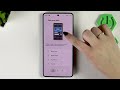
In this video I show how to add a photo to the Quick Settings (Quick Panel) background on a SAMSUNG Galaxy S26 Ultra using Samsung's GoodLock app and the QuickStar module. You will learn how to download GoodLock from the Galaxy Store or Google Play, install QuickStar, open Edit Panel Style, add a photo to sections like the button box or media player, crop and position the image, preview the change in the quick panel, and remove the image if you want to revert. This easy step-by-step guide helps you personalize the quick settings background while keeping icons readable and visible.
How to add a photo to Quick Settings background on SAMSUNG Galaxy S26 Ultra?
How to use GoodLock QuickStar to set a custom Quick Panel background on SAMSUNG Galaxy S26 Ultra?
How to remove or change the Quick Settings background on SAMSUNG Galaxy S26 Ultra?
0:00 Intro – What we will change on the Galaxy S26 Ultra
0:12 Download GoodLock from Galaxy Store or Google Play
0:27 Install QuickStar module and open it
0:55 Open Edit Panel Style in QuickStar
1:44 Remove previous image and add photo to Button Box
2:04 Choose photo from Gallery and crop the selection
2:30 Apply photo and preview it in the Quick Panel
3:04 Delete the photo or reset to default
3:17 Outro – subscribe and final notes
#GalaxyS26Ultra #GoodLock #QuickStar #QuickSettings
Find out more:
https://www.hardreset.info/devices/samsung/samsung-galaxy-s26-ultra/
Follow us on Instagram ► https://www.instagram.com/hardreset.info
Like us on Facebook ► https://www.facebook.com/hardresetinfo/
Tweet us on Twitter ► https://twitter.com/HardResetI
Support us on TikTok ► https://www.tiktok.com/@hardreset.info
Use Reset Guides for many popular Apps ► https://www.hardreset.info/apps/apps/
Видео SAMSUNG Galaxy S26 Ultra - How to Add Photo to Quick Settings Background канала HardReset.Info
How to add a photo to Quick Settings background on SAMSUNG Galaxy S26 Ultra?
How to use GoodLock QuickStar to set a custom Quick Panel background on SAMSUNG Galaxy S26 Ultra?
How to remove or change the Quick Settings background on SAMSUNG Galaxy S26 Ultra?
0:00 Intro – What we will change on the Galaxy S26 Ultra
0:12 Download GoodLock from Galaxy Store or Google Play
0:27 Install QuickStar module and open it
0:55 Open Edit Panel Style in QuickStar
1:44 Remove previous image and add photo to Button Box
2:04 Choose photo from Gallery and crop the selection
2:30 Apply photo and preview it in the Quick Panel
3:04 Delete the photo or reset to default
3:17 Outro – subscribe and final notes
#GalaxyS26Ultra #GoodLock #QuickStar #QuickSettings
Find out more:
https://www.hardreset.info/devices/samsung/samsung-galaxy-s26-ultra/
Follow us on Instagram ► https://www.instagram.com/hardreset.info
Like us on Facebook ► https://www.facebook.com/hardresetinfo/
Tweet us on Twitter ► https://twitter.com/HardResetI
Support us on TikTok ► https://www.tiktok.com/@hardreset.info
Use Reset Guides for many popular Apps ► https://www.hardreset.info/apps/apps/
Видео SAMSUNG Galaxy S26 Ultra - How to Add Photo to Quick Settings Background канала HardReset.Info
Комментарии отсутствуют
Информация о видео
Вчера, 19:06:28
00:03:35
Другие видео канала
 SAMSUNG Galaxy S26 Ultra - How to Use Samsung Kids (Kids Protection)
 HONOR 600 Pro – Top Features
 HONOR Magic V5 – Top Reasons to Buy
 HONOR 600 Pro vs HONOR 600 — App Opening Speedtest
 HUAWEI Watch GT Runner 2 – All Tutorials, Setup & Best Features
 HONOR 600 Pro – First 10 Things to Do After Setup
 How to Reset All Settings on OnePlus Nord 6
 Storage Info & Format — DJI Osmo Pocket 4
 SAMSUNG Galaxy S10 – How to Install TWRP Custom Recovery
 SAMSUNG Galaxy S26 Ultra – One UI 8.5: New Functions
 HONOR 600 Pro - First Things To Do After Setup
 #instagram #meme #techtok #blogger
 MacBook Air vs MacBook Neo — Keyboard key differences
 SAMSUNG Galaxy S26 Ultra – How to Restart Phone with Voice
 SAMSUNG Galaxy S26 Ultra – How to Add Background Image to Quick Panel
 OPPO Find X9 Ultra – All AI Features Explained
 AI WRITING MODE ON HONOR 600🖊️🤔 #aiwriting #honor #androidtips #techtok #text
 HONOR 600 Pro — Hidden Features You Need to Enable
 Bluetooth Settings and Received Files📁 #bluetooth #files #honor #androidtips #techtok
 Honor is the iPhone of the Android world😅 #honor #iphone #honor600 #androidtips #techtok
 HONOR 600 vs HONOR 600 Pro — Which One Is Worth Buying?
