
- Популярные видео
- Авто
- Видео-блоги
- ДТП, аварии
- Для маленьких
- Еда, напитки
- Животные
- Закон и право
- Знаменитости
- Игры
- Искусство
- Комедии
- Красота, мода
- Кулинария, рецепты
- Люди
- Мото
- Музыка
- Мультфильмы
- Наука, технологии
- Новости
- Образование
- Политика
- Праздники
- Приколы
- Природа
- Происшествия
- Путешествия
- Развлечения
- Ржач
- Семья
- Сериалы
- Спорт
- Стиль жизни
- ТВ передачи
- Танцы
- Технологии
- Товары
- Ужасы
- Фильмы
- Шоу-бизнес
- Юмор
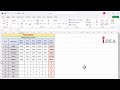
Lesson-33 | Excel for Beginners to Advanced | How to separate text in Excel using formula
Stop extracting text cell-by-cell in Excel! 🛑 Learn how to use the LEFT function and combine it with the FIND function to automate your text extraction in less than 60 seconds.
In this step-by-step Excel tutorial, we break down how to pull a specific number of characters from the start of a cell, and how to make the formula completely dynamic when your text prefixes are different lengths (like extracting a first name from a full name string).
📋 Formulas Used in This Video:
🔹 Basic Fixed Text: =LEFT(cell, number_of_characters)
🔹 Advanced Dynamic Text: =LEFT(cell, FIND(" ", cell) - 1)
If you want to master Excel formulas, speed up data cleaning, and save hours of manual work at your job, make sure to subscribe for more daily Excel tips and shortcuts!
#ExcelTips #ExcelTutorial #ExcelFormulas #YouTubeShorts #TechShorts #DataCleaning #OfficeHacks #LearnExcel #ProductivityTips
Видео Lesson-33 | Excel for Beginners to Advanced | How to separate text in Excel using formula канала IDEA
In this step-by-step Excel tutorial, we break down how to pull a specific number of characters from the start of a cell, and how to make the formula completely dynamic when your text prefixes are different lengths (like extracting a first name from a full name string).
📋 Formulas Used in This Video:
🔹 Basic Fixed Text: =LEFT(cell, number_of_characters)
🔹 Advanced Dynamic Text: =LEFT(cell, FIND(" ", cell) - 1)
If you want to master Excel formulas, speed up data cleaning, and save hours of manual work at your job, make sure to subscribe for more daily Excel tips and shortcuts!
#ExcelTips #ExcelTutorial #ExcelFormulas #YouTubeShorts #TechShorts #DataCleaning #OfficeHacks #LearnExcel #ProductivityTips
Видео Lesson-33 | Excel for Beginners to Advanced | How to separate text in Excel using formula канала IDEA
how to extract text in excel excel left function excel left and find function together separate text in excel formula how to use left function in excel extract first name in excel excel text manipulation data cleaning in excel excel tips and tricks excel tutorial for beginners automated data entry excel dynamic left function excel pull characters from left excel
Комментарии отсутствуют
Информация о видео
5 ч. 50 мин. назад
00:01:20
Другие видео канала
 MS Excel Top 10 Shortcuts in 1 Minute | Top 10 Excel Tips | #exceltips
 Auto highlight active row in excel | Conditional Formatting
 🚀 Interactive Way to Filter Data in Excel Using Slicer | Easy & Quick Tutorial
 SUM and VLookup formula in excel | #exceltips #excelformula #excelforbeginners #exceltutorial
 Lesson-32 | Excel for Beginners to Advanced | How to Mark Fail or Pass with two conditions #excel
 How to Create Salary Sheet in Excel | DA, TA, PF & Net Salary Calculation | Salary Calculator
 Lookup formula in excel | formula in excel
 Lesson-26 | Excel for Beginners to Advanced | Align Text in Excel (Left, Center, Right, Top, Bottom)
 Top 10 Modern Low-Cost Bed Designs | Realistic 3D Render Ideas for Budget Bedrooms
 How to compare lists in Excel using the MATCH function | How to Remove #N/A Error | #excelformula
 Lesson-23 | Excel for Beginners to Advanced | Keep Headers Visible While Scrolling | #excelshorts
 How to Use Excel: Complete Excel Tutorial for Beginners (Charts, Functions, Formatting Explained)
 Lesson-1 | Excel for Beginners to Advanced | How to Open & Save a Workbook Fast | #exceltutorial
 how to calculate percentage in excel | Excel interview question & answer | Excel shorts videos
 Lesson-4 | Excel for Beginners to Advanced | Excel Column Width Trick | AutoFit in Seconds!
 How to Use IF Function in Excel (Step-by-Step for Beginners) | Master IF Function in Excel Quickly
 Bed room modeling | interior modeling | Learn 3ds Max
 Lesson-24 | Excel for Beginners to Advanced | How to Fit Long Text in One Cell in Excel #excel
 Top 20 Modern Sofa Designs for a Stylish Home | Best Sofa Ideas & Trends 2025
 Product and Sum #formula in #excel | Sum in excel | Product in excel
 🔥 How to Find the Smallest Number in Excel Data | Easy Methods & Tips!
