- Популярные видео
- Авто
- Видео-блоги
- ДТП, аварии
- Для маленьких
- Еда, напитки
- Животные
- Закон и право
- Знаменитости
- Игры
- Искусство
- Комедии
- Красота, мода
- Кулинария, рецепты
- Люди
- Мото
- Музыка
- Мультфильмы
- Наука, технологии
- Новости
- Образование
- Политика
- Праздники
- Приколы
- Природа
- Происшествия
- Путешествия
- Развлечения
- Ржач
- Семья
- Сериалы
- Спорт
- Стиль жизни
- ТВ передачи
- Танцы
- Технологии
- Товары
- Ужасы
- Фильмы
- Шоу-бизнес
- Юмор
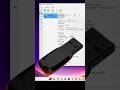
How to Add USB Drive / Pendrive in VMware Workstation Pro virtual Machine
How to Access Pendrive from Virtual Machine in VMware Workstation Pro | USB Passthrough Guide 💻🔌
Want to use your USB drive or Pendrive inside a VMware Workstation Pro virtual machine? This step-by-step tutorial shows you how to add a USB controller, connect your Pendrive via passthrough, and access it from the guest OS (Windows/Linux). Perfect for data transfer, testing, or hardware passthrough on Windows 11/10 hosts! Works with VMware Workstation Pro
📌 Steps to Add USB Drive / Pendrive to VMware Workstation Pro Virtual Machine:
1 Power Off the VM: Shut down your virtual machine in VMware Workstation Pro (VM → Power → Shut Down Guest).
2 Add USB Controller: Select the VM → VM → Settings → Hardware → Add → USB Controller → Select USB 2.0 or 3.0 (EHCI/xHCI) → Finish.
3 Start the VM: Power on the VM (VM → Power → Power On).
4 Connect USB Device: Plug in your Pendrive/USB drive to the host PC. In VMware, go to VM → Removable Devices → [Your USB Device Name] → Connect (Disconnect from host). (On Linux hosts, it auto-connects; on Windows, confirm the prompt.)
5 Verify in Guest OS: Inside the VM, open File Explorer (Windows) or Files (Linux) → Your Pendrive should appear as a removable drive. Access files as usual.
6 Disconnect Safely: When done, VM → Removable Devices → [USB Device] → Disconnect → Safely eject from host if needed.
💡 Tips for Success:
USB Compatibility: Use USB 2.0 for older VMs; USB 3.0 requires xHCI controller (add if missing). Not all USB 3.0 devices work perfectly in VMs—test first.
Host OS Differences: On Windows hosts, right-click the USB icon in the status bar to connect. On Linux, ensure VM is active window for auto-connect.
VMware Tools: Install VMware Tools in the guest OS (VM → Install VMware Tools) for better device handling.
Troubleshooting: If not detected, check USB arbitration (Edit → Preferences → USB → Show all USB input devices). Restart VM or host if stuck. For external HDDs, format if needed.
Security Note: Passthrough gives VM full access—eject safely to avoid data corruption.
Alternatives: For persistent access, use shared folders (VM → Settings → Options → Shared Folders).
🔥 Need More Help?
Drop your VMware version (e.g., 17 Pro) or USB device details in the comments!
👍 Like, Share, and Subscribe!
If this video helped you access your Pendrive in VMware, give it a thumbs up, share with friends, and subscribe for more tech tutorials! Hit the 🔔 to stay updated with our latest videos.
#VMwareUSB #PendriveVMware #VirtualMachineUSB #VMwareWorkstation #TechTutorial #USBPassthrough #VMwarePro
Видео How to Add USB Drive / Pendrive in VMware Workstation Pro virtual Machine канала Discover You
Want to use your USB drive or Pendrive inside a VMware Workstation Pro virtual machine? This step-by-step tutorial shows you how to add a USB controller, connect your Pendrive via passthrough, and access it from the guest OS (Windows/Linux). Perfect for data transfer, testing, or hardware passthrough on Windows 11/10 hosts! Works with VMware Workstation Pro
📌 Steps to Add USB Drive / Pendrive to VMware Workstation Pro Virtual Machine:
1 Power Off the VM: Shut down your virtual machine in VMware Workstation Pro (VM → Power → Shut Down Guest).
2 Add USB Controller: Select the VM → VM → Settings → Hardware → Add → USB Controller → Select USB 2.0 or 3.0 (EHCI/xHCI) → Finish.
3 Start the VM: Power on the VM (VM → Power → Power On).
4 Connect USB Device: Plug in your Pendrive/USB drive to the host PC. In VMware, go to VM → Removable Devices → [Your USB Device Name] → Connect (Disconnect from host). (On Linux hosts, it auto-connects; on Windows, confirm the prompt.)
5 Verify in Guest OS: Inside the VM, open File Explorer (Windows) or Files (Linux) → Your Pendrive should appear as a removable drive. Access files as usual.
6 Disconnect Safely: When done, VM → Removable Devices → [USB Device] → Disconnect → Safely eject from host if needed.
💡 Tips for Success:
USB Compatibility: Use USB 2.0 for older VMs; USB 3.0 requires xHCI controller (add if missing). Not all USB 3.0 devices work perfectly in VMs—test first.
Host OS Differences: On Windows hosts, right-click the USB icon in the status bar to connect. On Linux, ensure VM is active window for auto-connect.
VMware Tools: Install VMware Tools in the guest OS (VM → Install VMware Tools) for better device handling.
Troubleshooting: If not detected, check USB arbitration (Edit → Preferences → USB → Show all USB input devices). Restart VM or host if stuck. For external HDDs, format if needed.
Security Note: Passthrough gives VM full access—eject safely to avoid data corruption.
Alternatives: For persistent access, use shared folders (VM → Settings → Options → Shared Folders).
🔥 Need More Help?
Drop your VMware version (e.g., 17 Pro) or USB device details in the comments!
👍 Like, Share, and Subscribe!
If this video helped you access your Pendrive in VMware, give it a thumbs up, share with friends, and subscribe for more tech tutorials! Hit the 🔔 to stay updated with our latest videos.
#VMwareUSB #PendriveVMware #VirtualMachineUSB #VMwareWorkstation #TechTutorial #USBPassthrough #VMwarePro
Видео How to Add USB Drive / Pendrive in VMware Workstation Pro virtual Machine канала Discover You
vmware vmware player vmware player workstation vmware workstation pro vmware tools windows 10 windows 11 enable pendrive in virtual Machine enable usb drive enable USB Drive in vmware workstation pro use usb drive on vmware workstation usb drive VMware USB Pendrive VMware VMware Workstation Virtual Machine USB USB Drive VM VMware Pendrive Add USB VMware Connect USB VM USB Controller VMware Access USB in VM VMware Workstation Pro USB Device VMware
Комментарии отсутствуют
Информация о видео
16 октября 2025 г. 9:00:12
00:01:26
Другие видео канала