
- Популярные видео
- Авто
- Видео-блоги
- ДТП, аварии
- Для маленьких
- Еда, напитки
- Животные
- Закон и право
- Знаменитости
- Игры
- Искусство
- Комедии
- Красота, мода
- Кулинария, рецепты
- Люди
- Мото
- Музыка
- Мультфильмы
- Наука, технологии
- Новости
- Образование
- Политика
- Праздники
- Приколы
- Природа
- Происшествия
- Путешествия
- Развлечения
- Ржач
- Семья
- Сериалы
- Спорт
- Стиль жизни
- ТВ передачи
- Танцы
- Технологии
- Товары
- Ужасы
- Фильмы
- Шоу-бизнес
- Юмор
I Made a Custom Twitch Overlay with Canva AI… and It Was Perfect
Canva AI just created a full custom streaming overlay for me, and honestly… I couldn’t find anything to change.
In this video, I’ll show you how I used Canva’s AI tools to create a custom stream overlay, then walk through how to export it, set it up in StreamElments, and add it inside OBS. If you’re a streamer, content creator, or someone who wants your stream to look more professional without spending hours designing everything from scratch, this is a game-changer.
Whether you stream on Twitch, YouTube, Kick, or Facebook Gaming, Canva makes it easy to create overlays, alerts, webcam frames, starting soon screens, and more.
Try Canva here: [insert your Canva affiliate/sponsor link]
#CanvaVerifiedExpert #DesignedWithCanva #CanvaAI
\\ Links //
Canva Pro Free Trial: https://partner.canva.com/30DayTrial
\\ Where to Find Me //
Twitch: https://twitch.tv/drheals
The Clinic (Discord): https://discord.gg/RkU4Ru6
===⏰TWITCH SCHEDULE⏰===
Wednesday: 11pm-2am CST
Thursday: 11pm-2am CST
Friday: 11pm-2am CST
\\ My Streaming Gear //
My Cam: https://amzn.to/2LFOb2k
My Mic: https://amzn.to/3WCqyIS
My Audio Interface: https://amzn.to/3jFUPb7
Capture Card: https://amzn.to/2SHoOxF
**Some links above are affiliate links, they cost you nothing but help tremendously to support the channel!**
Видео I Made a Custom Twitch Overlay with Canva AI… and It Was Perfect канала DrHeals
In this video, I’ll show you how I used Canva’s AI tools to create a custom stream overlay, then walk through how to export it, set it up in StreamElments, and add it inside OBS. If you’re a streamer, content creator, or someone who wants your stream to look more professional without spending hours designing everything from scratch, this is a game-changer.
Whether you stream on Twitch, YouTube, Kick, or Facebook Gaming, Canva makes it easy to create overlays, alerts, webcam frames, starting soon screens, and more.
Try Canva here: [insert your Canva affiliate/sponsor link]
#CanvaVerifiedExpert #DesignedWithCanva #CanvaAI
\\ Links //
Canva Pro Free Trial: https://partner.canva.com/30DayTrial
\\ Where to Find Me //
Twitch: https://twitch.tv/drheals
The Clinic (Discord): https://discord.gg/RkU4Ru6
===⏰TWITCH SCHEDULE⏰===
Wednesday: 11pm-2am CST
Thursday: 11pm-2am CST
Friday: 11pm-2am CST
\\ My Streaming Gear //
My Cam: https://amzn.to/2LFOb2k
My Mic: https://amzn.to/3WCqyIS
My Audio Interface: https://amzn.to/3jFUPb7
Capture Card: https://amzn.to/2SHoOxF
**Some links above are affiliate links, they cost you nothing but help tremendously to support the channel!**
Видео I Made a Custom Twitch Overlay with Canva AI… and It Was Perfect канала DrHeals
Canva AI Canva tutorial Canva stream overlay how to make stream overlays Twitch overlay Canva OBS tutorial Canva OBS overlay stream design streaming overlay tutorial custom stream overlay Canva for streamers Twitch setup OBS setup YouTube streaming overlay Kick streaming overlay Canva Magic Studio Canva AI design stream branding content creator tools Canva Verified Expert Jeff Evans
Комментарии отсутствуют
Информация о видео
1 мая 2026 г. 23:47:37
00:12:03
Другие видео канала
 Let's Play Palia | NEW Cozy MMO Farming Game | Episode 1
![Edit Videos in Canva... for FREE!! [Canva for Streamers Tutorial]](https://i.ytimg.com/vi/pnu6n1N23Y0/default.jpg) Edit Videos in Canva... for FREE!! [Canva for Streamers Tutorial]
Edit Videos in Canva... for FREE!! [Canva for Streamers Tutorial]
![Improve Your Canva Skills with a StreamDeck+ [Canva Tutorial]](https://i.ytimg.com/vi/fDgvQJa-_8c/default.jpg) Improve Your Canva Skills with a StreamDeck+ [Canva Tutorial]
Improve Your Canva Skills with a StreamDeck+ [Canva Tutorial]
 Make Eye-Catching Twitch Panels in Canva - Tutorial
 Create Custom Stream Schedule in Canva
 Answering Canva Questions!
![Creating a Stream Logo in SECONDS with Canva Dreamlab AI [Canva for Streamers]](https://i.ytimg.com/vi/HjyugiskXnY/default.jpg) Creating a Stream Logo in SECONDS with Canva Dreamlab AI [Canva for Streamers]
Creating a Stream Logo in SECONDS with Canva Dreamlab AI [Canva for Streamers]
![Grow your stream with FREE CTAs made in Canva | [Canva for Streamers Tutorial]](https://i.ytimg.com/vi/Y7PqJrKUhYM/default.jpg) Grow your stream with FREE CTAs made in Canva | [Canva for Streamers Tutorial]
Grow your stream with FREE CTAs made in Canva | [Canva for Streamers Tutorial]
 How I Found My Audiobook Voice (in Minutes)
 How to Remake ANY Design in Canva (and Actually Improve)
 Make a Stream Schedule Carousel in Canva (Step-by-Step)
![[2023 Update] Design Your Streaming Logo in Canva for FREE | Canva for Streamers](https://i.ytimg.com/vi/0xyaVpq8kt4/default.jpg) [2023 Update] Design Your Streaming Logo in Canva for FREE | Canva for Streamers
[2023 Update] Design Your Streaming Logo in Canva for FREE | Canva for Streamers
 Make FREE stream pop ups in Canva! #CanvaVerifiedExpert
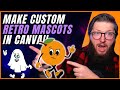 Make your own Miss Minutes Logo in Canva | Canva for Streamers
 Canva + ChatGPT = 🤯
 How to Design Eye-Catching YouTube Thumbnails with Canva (Step-by-Step)
![How to Make a Stand-Out Profile Pic in Canva | [Canva Tutorial]](https://i.ytimg.com/vi/MhNu6_VaYaU/default.jpg) How to Make a Stand-Out Profile Pic in Canva | [Canva Tutorial]
How to Make a Stand-Out Profile Pic in Canva | [Canva Tutorial]
![The EASY Way to Create a Stunning Streamer Logo in 2024 [Canva for Streamers]](https://i.ytimg.com/vi/04h4XzmjCME/default.jpg) The EASY Way to Create a Stunning Streamer Logo in 2024 [Canva for Streamers]
The EASY Way to Create a Stunning Streamer Logo in 2024 [Canva for Streamers]
 Build a FREE Custom Website in Canva (Fast & Easy)
 Using the Elgato StreamDeck+ to control Canva!
 Grow on Twitch in 15 Days
