
- Популярные видео
- Авто
- Видео-блоги
- ДТП, аварии
- Для маленьких
- Еда, напитки
- Животные
- Закон и право
- Знаменитости
- Игры
- Искусство
- Комедии
- Красота, мода
- Кулинария, рецепты
- Люди
- Мото
- Музыка
- Мультфильмы
- Наука, технологии
- Новости
- Образование
- Политика
- Праздники
- Приколы
- Природа
- Происшествия
- Путешествия
- Развлечения
- Ржач
- Семья
- Сериалы
- Спорт
- Стиль жизни
- ТВ передачи
- Танцы
- Технологии
- Товары
- Ужасы
- Фильмы
- Шоу-бизнес
- Юмор
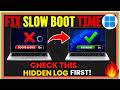
How to Make Windows Faster Change These Settings Right Now
Is your Windows 11 PC running slow? Does your laptop take forever to start up, freeze while opening apps, or feel sluggish even when you're not doing anything demanding? In this video, you'll learn how to make Windows 11 faster using built-in settings that many users never touch.
Many people assume they need more RAM, a new SSD, or even a new computer when Windows 11 starts slowing down. But before spending money on hardware upgrades, there are several Windows 11 performance settings you can adjust that may help improve startup speed, reduce background activity, free up storage space, and make your PC feel more responsive.
In this step-by-step Windows 11 optimization guide, we'll cover some of the most useful settings available in the operating system. You'll learn how to use Storage Sense to remove unnecessary files, manage startup apps that launch automatically when Windows boots, adjust privacy settings, review background app permissions, optimize visual effects, clear temporary files, and remove unnecessary resource usage from features you don't need.
One of the biggest reasons many Windows 11 computers feel slow is because too many applications start automatically in the background. Programs like communication apps, cloud storage services, gaming launchers, and utility software often load during startup and consume memory before you even begin using your PC. By reviewing and disabling unnecessary startup programs, you can often improve boot times and reduce resource usage.
Another important area covered in this video is Windows storage cleanup. Over time, temporary files, cache files, update leftovers, and other unnecessary data can accumulate on your system drive. We'll show you how to use Storage Sense and Windows cleanup tools to safely remove these files and recover valuable disk space.
Privacy and background activity settings can also affect how many processes run on your computer. In this guide, you'll learn how to review privacy options, diagnostic settings, app permissions, location access, microphone access, camera permissions, and other features that may continue running even when you're not actively using them.
If you're looking for ways to speed up Windows 11, improve PC performance, reduce lag, fix slow startup issues, optimize system settings, or simply make your computer feel faster, this tutorial is for you.
Topics covered in this video:
• How to make Windows 11 faster
• Best Windows 11 performance settings
• Windows 11 optimization tips
• How to speed up a slow Windows 11 PC
• Storage Sense setup and cleanup
• Remove temporary files in Windows 11
• Disable unnecessary startup programs
• Manage background apps and permissions
• Adjust Windows visual effects for performance
• Windows 11 privacy and diagnostic settings
• Clear temp folders safely
• Improve startup speed and responsiveness
• Reduce unnecessary background activity
• Windows 11 maintenance tips
• PC performance improvement guide
Whether you're using a desktop PC, gaming computer, work laptop, school laptop, or budget Windows 11 device, these settings can help you get the most out of your system without installing third-party software.
This tutorial is designed for beginners and advanced users alike. Every step is explained clearly so you can follow along and apply the settings on your own computer. No technical knowledge required.
If you found this video helpful, make sure to like, subscribe, and turn on notifications for more Windows 11 tips, PC optimization guides, privacy tutorials, technology updates, troubleshooting solutions, and productivity tricks.
#Windows11 #Windows11Tips #Windows11Performance #SpeedUpWindows11 #WindowsOptimization #PCPerformance #WindowsTutorial #TechTips #ComputerTips #WindowsSettings #StartupApps #StorageSense #Windows11Guide #Windows11Tricks #SlowPCFix #Windows11SpeedUp #WindowsPerformance #OptimizeWindows11 #Windows11Tutorial #TechReporter
Видео How to Make Windows Faster Change These Settings Right Now канала Tech Reporter
Many people assume they need more RAM, a new SSD, or even a new computer when Windows 11 starts slowing down. But before spending money on hardware upgrades, there are several Windows 11 performance settings you can adjust that may help improve startup speed, reduce background activity, free up storage space, and make your PC feel more responsive.
In this step-by-step Windows 11 optimization guide, we'll cover some of the most useful settings available in the operating system. You'll learn how to use Storage Sense to remove unnecessary files, manage startup apps that launch automatically when Windows boots, adjust privacy settings, review background app permissions, optimize visual effects, clear temporary files, and remove unnecessary resource usage from features you don't need.
One of the biggest reasons many Windows 11 computers feel slow is because too many applications start automatically in the background. Programs like communication apps, cloud storage services, gaming launchers, and utility software often load during startup and consume memory before you even begin using your PC. By reviewing and disabling unnecessary startup programs, you can often improve boot times and reduce resource usage.
Another important area covered in this video is Windows storage cleanup. Over time, temporary files, cache files, update leftovers, and other unnecessary data can accumulate on your system drive. We'll show you how to use Storage Sense and Windows cleanup tools to safely remove these files and recover valuable disk space.
Privacy and background activity settings can also affect how many processes run on your computer. In this guide, you'll learn how to review privacy options, diagnostic settings, app permissions, location access, microphone access, camera permissions, and other features that may continue running even when you're not actively using them.
If you're looking for ways to speed up Windows 11, improve PC performance, reduce lag, fix slow startup issues, optimize system settings, or simply make your computer feel faster, this tutorial is for you.
Topics covered in this video:
• How to make Windows 11 faster
• Best Windows 11 performance settings
• Windows 11 optimization tips
• How to speed up a slow Windows 11 PC
• Storage Sense setup and cleanup
• Remove temporary files in Windows 11
• Disable unnecessary startup programs
• Manage background apps and permissions
• Adjust Windows visual effects for performance
• Windows 11 privacy and diagnostic settings
• Clear temp folders safely
• Improve startup speed and responsiveness
• Reduce unnecessary background activity
• Windows 11 maintenance tips
• PC performance improvement guide
Whether you're using a desktop PC, gaming computer, work laptop, school laptop, or budget Windows 11 device, these settings can help you get the most out of your system without installing third-party software.
This tutorial is designed for beginners and advanced users alike. Every step is explained clearly so you can follow along and apply the settings on your own computer. No technical knowledge required.
If you found this video helpful, make sure to like, subscribe, and turn on notifications for more Windows 11 tips, PC optimization guides, privacy tutorials, technology updates, troubleshooting solutions, and productivity tricks.
#Windows11 #Windows11Tips #Windows11Performance #SpeedUpWindows11 #WindowsOptimization #PCPerformance #WindowsTutorial #TechTips #ComputerTips #WindowsSettings #StartupApps #StorageSense #Windows11Guide #Windows11Tricks #SlowPCFix #Windows11SpeedUp #WindowsPerformance #OptimizeWindows11 #Windows11Tutorial #TechReporter
Видео How to Make Windows Faster Change These Settings Right Now канала Tech Reporter
Комментарии отсутствуют
Информация о видео
3 июня 2026 г. 17:04:00
00:12:20
Другие видео канала
 Windows Has Hidden Junk Files You Need to Delete Right Now ( Tech Reporter )
 Microsoft's Windows 11 Update Is Bricking your PCs
 Windows Has a Secret Auto-Cleanup Feature Most People Never Turn On (Tech Reporter)
 Windows 11 26H1 May 2026 Update – Xbox Mode, File Explorer & Major Fixes (Build 28000.2176)
 Reset Google Account Now! or these hidden apps open doors for scammer.
 Windows Updates Got SO Bad Microsoft Had to Add This ( May 2026 Update)
 DELETE GOOGLE CHROME NOW! Use This Setting Instead
 Windows K2_ All New Features Released till Date ( May 2026)
 Gmail is feeding Your Emails to AI? — Block It Without Losing Your Inbox
 5 New Windows 11 Features You Should know
 Microsoft is finally reversing one of its most controversial AI changes 23/5/2026 | Tech Reporter
 Rufus Just Made Windows 11 Fantastic_ No TPM, No Account, No Bloat - May 2026
 Looking for Installing Linux as a Separate Operating System on Windows 11 (2026 Guide)
 How to Install Windows 11 Without the Bloat (2026 Guide)
 Microsoft Edge Consuming 90% of Your RAM? Here's How to Fix It
 OneDrive Hidden Setting Uploading Your Files to Microsoft's AI...Turn It Off Now
 Having Trouble With A Windows Update? Don't Uninstall It Yet
 Windows 11 Taking Forever to Start? These App Settings are the Problem
 Most Gmail Users Ignore This Before Deleting Their Account!
