
- Популярные видео
- Авто
- Видео-блоги
- ДТП, аварии
- Для маленьких
- Еда, напитки
- Животные
- Закон и право
- Знаменитости
- Игры
- Искусство
- Комедии
- Красота, мода
- Кулинария, рецепты
- Люди
- Мото
- Музыка
- Мультфильмы
- Наука, технологии
- Новости
- Образование
- Политика
- Праздники
- Приколы
- Природа
- Происшествия
- Путешествия
- Развлечения
- Ржач
- Семья
- Сериалы
- Спорт
- Стиль жизни
- ТВ передачи
- Танцы
- Технологии
- Товары
- Ужасы
- Фильмы
- Шоу-бизнес
- Юмор
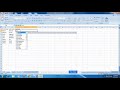
Delete All Blank Rows in Excel Entire Row @BrainUpp
Delete All Blank Rows in Excel Entire Row @BrainUpp
A quick way to delete or remove blank rows in Excel
Press [F5].
In the resulting Go To dialog box, click Special.
Click the Blanks option and click OK. ...
Now you're ready to delete the selected cells. ...
Excel will delete the blank cells from the selected data range.
Deleting blank rows in an Excel data range is easy with this technique, but watch out for unintended consequences.
Blank rows aren’t bad, but in most sheets, they’re definitely undesirable. Excel uses blanks to determine data ranges, and a blank row in the wrong place will inhibit many built-in features. Fortunately, there’s an easy way to remove blank rows from a data range, but this easy technique has the potential to destroy data, so you must be careful.
After selecting the data range in Excel, continue as follows:
Press [F5].
In the resulting Go To dialog box, click Special.
Click the Blanks option and click OK. Doing so selects the blank cells (what you might think of as rows) in the selected range. In this case, that’s A7:E7 and A10:E10.
Now you’re ready to delete the selected cells. On the Home tab, click the Delete dropdown in the Cells group and choose Delete Cells. Excel will display the Delete dialog box, with the Delete Cells Up option selected. Click OK. Or, press [Ctrl]+-.
Excel will delete the blank cells from the selected data range.
How to Delete Blank Rows in Excel
There’s something inherently irritating about spreadsheets with blank rows.
Excel sets out your data so nicely—and then its hard work is interrupted by blank rows.
It seems unjust.
Fortunately, you can remove blank rows with just a few clicks!
First, we’ll show you the manual way to do it, in case you only have a few rows to delete.
Then we’ll look at one of the common ways people recommend deleting blank rows—and show you why it’s a bad idea.
Finally, we’ll go over at an effective way of getting rid of blank rows.
Your Questions-
delete blank rows in excel
delete blank cells in excel
delete blank rows in excel
vba excel delete blank rows
find and remove empty cells
Видео Delete All Blank Rows in Excel Entire Row @BrainUpp канала Brain Up
A quick way to delete or remove blank rows in Excel
Press [F5].
In the resulting Go To dialog box, click Special.
Click the Blanks option and click OK. ...
Now you're ready to delete the selected cells. ...
Excel will delete the blank cells from the selected data range.
Deleting blank rows in an Excel data range is easy with this technique, but watch out for unintended consequences.
Blank rows aren’t bad, but in most sheets, they’re definitely undesirable. Excel uses blanks to determine data ranges, and a blank row in the wrong place will inhibit many built-in features. Fortunately, there’s an easy way to remove blank rows from a data range, but this easy technique has the potential to destroy data, so you must be careful.
After selecting the data range in Excel, continue as follows:
Press [F5].
In the resulting Go To dialog box, click Special.
Click the Blanks option and click OK. Doing so selects the blank cells (what you might think of as rows) in the selected range. In this case, that’s A7:E7 and A10:E10.
Now you’re ready to delete the selected cells. On the Home tab, click the Delete dropdown in the Cells group and choose Delete Cells. Excel will display the Delete dialog box, with the Delete Cells Up option selected. Click OK. Or, press [Ctrl]+-.
Excel will delete the blank cells from the selected data range.
How to Delete Blank Rows in Excel
There’s something inherently irritating about spreadsheets with blank rows.
Excel sets out your data so nicely—and then its hard work is interrupted by blank rows.
It seems unjust.
Fortunately, you can remove blank rows with just a few clicks!
First, we’ll show you the manual way to do it, in case you only have a few rows to delete.
Then we’ll look at one of the common ways people recommend deleting blank rows—and show you why it’s a bad idea.
Finally, we’ll go over at an effective way of getting rid of blank rows.
Your Questions-
delete blank rows in excel
delete blank cells in excel
delete blank rows in excel
vba excel delete blank rows
find and remove empty cells
Видео Delete All Blank Rows in Excel Entire Row @BrainUpp канала Brain Up
delete all blank rows in excel entire row delete blank rows in excel entire row delete all blank rows in excel delete blank rows in excel excel delete all blank rows delete blank cells in excel excel remove empty rows delete blank rows in excel vba excel delete blank rows how to delete blank row in excel excel remove blank rows remove empty rows in excel delete blank rows in excel shortcut find and remove empty cells delete empty rows delete rows brain up
Комментарии отсутствуют
Информация о видео
12 июля 2022 г. 12:46:47
00:00:39
Другие видео канала
 I Edit My All Youtube Video In Kinemaster Without Watermark @BrainUpp
 5 Best Free Tools That Helps You To Grow On Fiverr
 My Channel Got Completed 1000 Subscriber | Live Subscriber
 Google Adsense Verify Your Address With Pin 2022 @BrainUpp
 Setup Your YouTube Channel Setting After Monetization
 YouTube Channel Milestone Achieved | Brain Up
 YouTube Creator Awards
 10 Fiverr Rules Violations That Will Ban You On Fiverr
 How to Combine Text Concadenate Text in Excel? Easy work on fiverr
 Fiverr Gig Creation | How To Create Fiverr SEO Optimize Gig
 How to Rank YouTube Videos With Tube Buddy @BrainUpp
 Youtube shorts monetization tips @BrainUpp
 How To Create Seller Account on Fiverr | Fiverr Tutorial
 How to combine text, concatenate text in excel
 KineMaster YouTube Video Editing App In Mobile
 Instant Data Scraper | How To Scrape Data From Website
 Translate English To Hindi In Googlesheet @Brain Up
 How to Send Effective Buyer Requests to Get Orders on Fiverr?
 YouTube Channel Monetization | Apply for Monetization On YouTube 2022
 Top 6 Fiverr Gigs For Beginners With Zero Skills In 2022
 Fiverr Buyer Request | 10 Best Tips To Send Buyer Request
